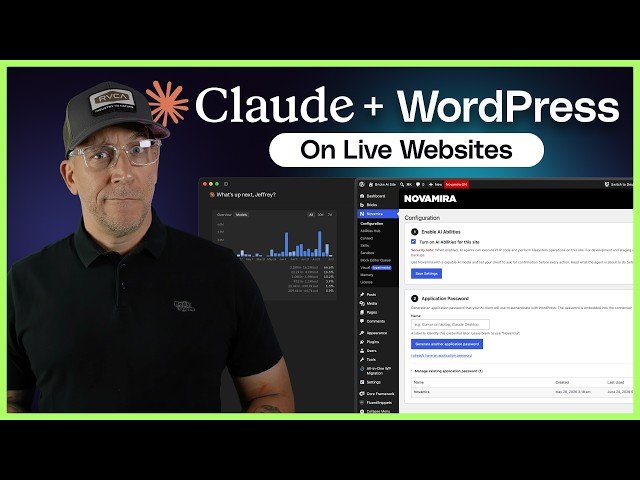
Practical walkthrough showing how to connect AI agents (Cloud Code/Claude) to a WordPress site while preserving security and best practices. The host demonstrates using a staging environment, configuring the Novamera plugin, generating application passwords, setting strict guardrails, and safely pushing changes to production. The video emphasizes containment, backups, and minimizing exposure when granting AI write access to live sites.
– Step 1 — Staging: Use a staging site (example: Cloudways) so live traffic remains protected; push changes only after testing.
– Step 2 — Connect AI: Install Novamera, enable AI, generate an application password, and link Cloud Code/Claude via an authenticated folder or SSH.
– Step 3 — Guardrails: Create a .claudemd rules file; restrict all generated code to a snippets plugin and forbid modifying core WordPress files.
– Steps 4–5 — Deploy & Containerize: Push from staging with backups, deactivate AI access on production, and prefer containerization/SSH carefully to limit AI scope.
Quotes:
Staging is an absolute must – I would never connect Cloud Code to a live production website.
AI could do some really stupid things, so set guardrails before it writes code.
Containerize everything.
Statistics
| Upload date: | 2026-07-03 |
|---|---|
| Likes: | 74 |
| Comments: | 11 |
| Statistics updated: | 2026-07-06 |
Specification: Connect Claude Code to a Live WordPress Site Safely
|